Usage: How to use Chauncey
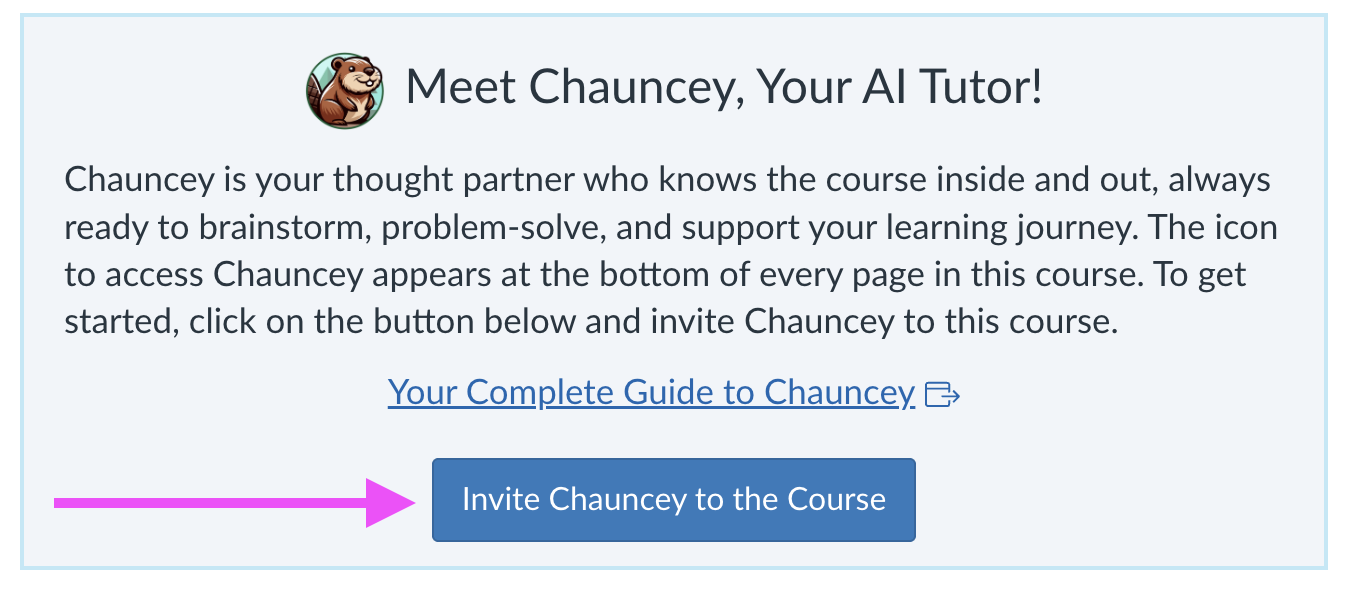
First, click the button to invite Chauncey to your course:
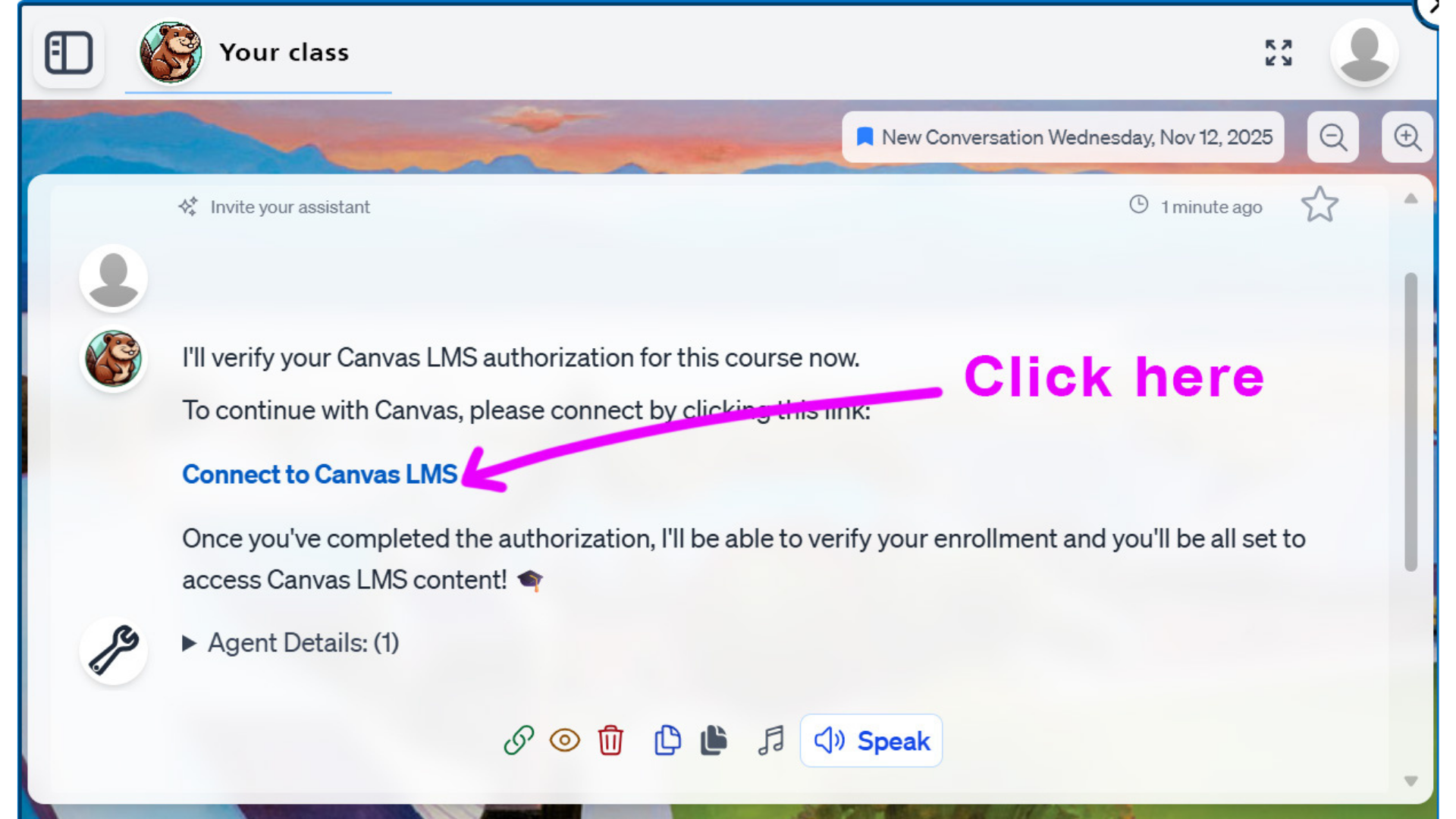
When you click on the Chauncey Icon, select ‘Connect to Canvas LMS‘:
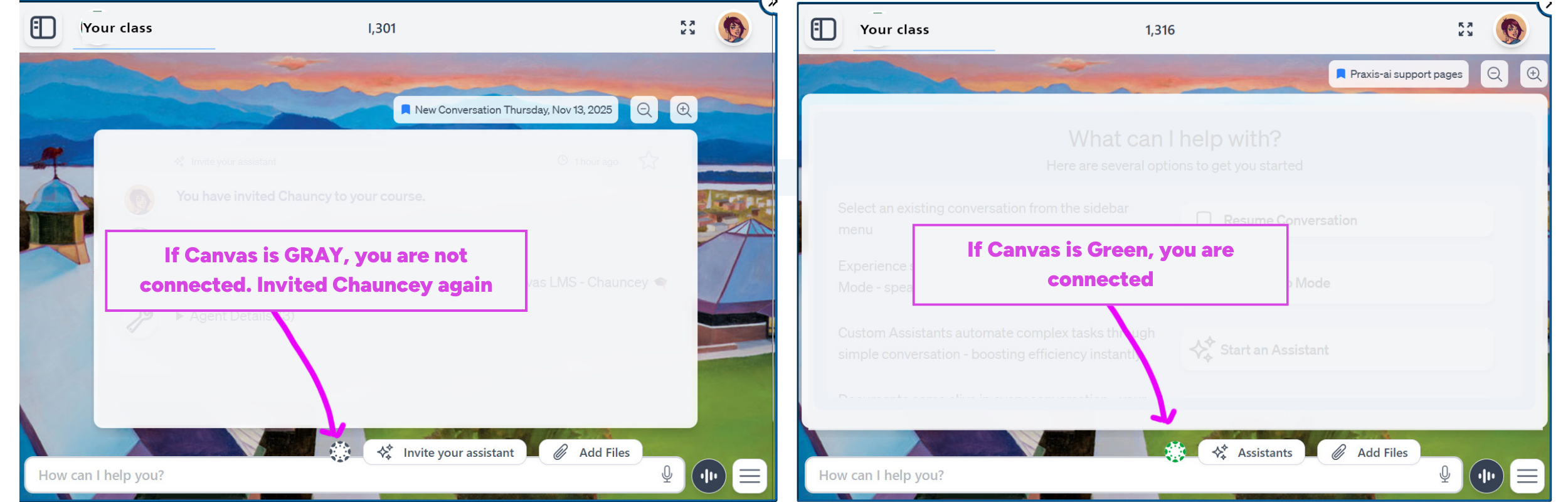
Make sure Chauncey is connected to Canvas. If Canvas is gray, invite Chauncey again. If Canvas is green, you are connected.
Once connected, you can either type in the ‘How can I help you’ box or talk by clicking the speech icon next to the text box.
Features: What can Chauncey do
- Appreciate your learning preferences and create personalized study guides or flashcards for key terms and theories.
- Provide multiple examples or work through problems step-by-step until concepts stick.
- Ask practice questions, engage in dynamic conversations, debate ideas, and “what ifs”.
- Discuss real-world events through the lens of your coursework and connect theory to practice by exploring real-world applications.
Safe Space: Chauncey is a Safe Space
We know that there are many free or paid AI tools available, but they often lack privacy protections and may store or use your data in ways that are not transparent.
By providing access to Chauncey in Canvas, we have ensured that you have the opportunity to learn and engage with generative AI in a private and secure environment that aligns with university policies. No data is used to train LLMs, and the class’s intellectual property is protected.
Note: Your professor determines when and how AI is used in your class, and there may be quizzes or assignments where you aren’t allowed to use AI. Always ASK your professor if you are uncertain which AI tools you can use in a class.
Best Practices
Using Chauncey can make your work easier, faster, and more productive—but a little guidance goes a long way. These best practices will help you get clearer answers, reduce back-and-forth, and make the most of your interactions with Chauncey. You don’t need to be an expert. With a few simple habits, you can help Chauncey understand exactly what you need and respond in a way that truly supports your learning, teaching, or project work.
Building More Effective Prompts
You don’t have to write perfect prompts—just helpful ones. Here’s what makes a big difference:
- State the goal and the audience
- Let Chauncey know what you want and who it’s for.
- Is your request meant for students? Faculty? A general reader? Knowing the audience helps Chauncey adjust tone, level of detail, and examples.
- Add any helpful boundaries
- If you have preferences for length, format, style, or what to include (or exclude), say so upfront. Think of it as giving Chauncey a quick set of instructions so it can hit the target the first time. A little extra detail leads to a much more useful response.
- Less helpful: “Write about marketing.”
- If you have preferences for length, format, style, or what to include (or exclude), say so upfront. Think of it as giving Chauncey a quick set of instructions so it can hit the target the first time. A little extra detail leads to a much more useful response.
Using Chauncey Effectively: Setting the Right Perspective
When you ask Chauncey for help, you can guide it to give you the kind of answer you want simply by telling it who to act like. Think of it as choosing the right “hat” for Chauncey to wear. This helps the AI adjust its tone, level of detail, and style so the response is more useful to you.
Why Setting a Perspective Helps
Chauncey can explain things in many different ways—formal, casual, technical, or step-by-step. Telling it the perspective you want helps Chauncey:
- Use the right vocabulary
- Choose an appropriate level of complexity
- Match the tone you need (professional, friendly, academic, etc.)
- Stay focused on what matters most for your task
You don’t need to be an expert in AI to do this. It’s as simple as starting your request with “Act as…” or “From the perspective of…”
Examples of How This Works
Here are a few easy examples that show how setting a perspective changes Chauncey’s response:
- “From the perspective of a tutor, explain this statistics problem in a step-by-step way.”
→ Chauncey will slow down, clarify terms, and teach rather than just give an answer. - “Act like a business analyst and summarize the main trends I should pay attention to in this data.”
→ Chauncey will highlight patterns and keep the response focused and concise. - “As a technical writer, help me rewrite these instructions so they’re clear for new learners.”
→ Chauncey will focus on clarity, examples, and plain language.
You can choose any role that helps Chauncey understand how you want the answer to sound—teacher, coach, editor, scientist, artist, advisor, etc.
How to Set a Perspective (Simple Formula)
If you’re not sure where to start, use this easy template:
“As a ___, help me ___ for ___. Please include ___ and use a ___ tone.”
Here’s an example using that format:
“As a study coach, help me create a weekly schedule for preparing for my final exam. Please include study blocks and break ideas, and use a supportive tone.”
Tips for Making the Most of Perspective Setting
- Pick a role that matches the help you need.
- Keep it simple—everyday roles work just as well as technical ones.
- If the tone feels off, tell Chauncey what you prefer (e.g., “make it more casual,” “explain it like I’m new to this,” etc.).
- You can always adjust: “Try that again, but this time act as…”
Why This Matters
Setting a perspective isn’t about being good at prompt engineering—it’s about making sure Chauncey communicates in a way that works best for you. This small step helps the AI stay on track, use the right language, match your goals, and provide clearer, more relevant answers. It’s like giving your tutor a quick heads-up before they start helping you.
Managing Conversations with Chauncey
Just like talking with a real person, it helps to stay organized when you’re chatting with Chauncey. Creating separate conversations for different topics makes it easier for Chauncey to remember what you’re working on and respond more accurately.
Why Conversation Management Matters
Chauncey learns from the back-and-forth within each conversation. If you’re asking questions about several unrelated topics in the same thread, Chauncey may mix things together or lose track of what you need. Think of each conversation as its own little workspace.
Keeping conversations organized helps Chauncey:
- Remember the right details from earlier messages
- Stay accurate because it has the correct context
- Follow your train of thought over multiple questions
- Avoid confusion when switching topics
Best Practices for Conversation Management
Below, you can see that when you open the sidebar, all of your conversations appear. You can select any edit any previously created conversation or add a new one.
Managing conversations isn’t about learning technical skills—it’s about staying organized so Chauncey can give you the best possible support. Keeping each topic in its own space helps Chauncey stay focused, accurate, and helpful throughout your work. Let’s review the following best practices
- Start a new conversation when the topic changes: If you begin working on something completely new—like switching from course design to troubleshooting an assignment—open a new conversation. This prevents information from one topic from spilling into another.
- Make sure you’re in the right thread before asking your next question: If you want Chauncey to build on something you discussed earlier, go back to that specific conversation first. This helps Chauncey connect the dots and keeps things consistent.
- Give conversations clear names: Helpful titles make it much easier to find your place later. Clear names = easy navigation.
- Examples: “AI Tutor Guidelines – Drafting”, “ACCT 420 Week 7 Lecture Planning”, and “Marketing Campaign Brainstorming”
- Examples: “AI Tutor Guidelines – Drafting”, “ACCT 420 Week 7 Lecture Planning”, and “Marketing Campaign Brainstorming”
- Use “Clear selected” when you want Chauncey to look across multiple threads: Sometimes you want Chauncey to take a step back and consider things you’ve discussed in different conversations. “Clear selected” widens the scope and lets Chauncey pull in more of your history. Use this when you want a big-picture view rather than details from one specific thread.
- If something seems missing, check another conversation: If Chauncey doesn’t seem to remember something important, it may just be in a different thread. Your context is kept separate on purpose—so switching threads often solves the problem.
Convo Mode
Convo mode transforms Chauncey’s interaction from traditional text-based Q&A into natural, flowing dialogue. It enables real-time voice conversations where you can speak naturally with Chauncey, creating a more intuitive and engaging experience.
- Natural Dialogue Flow: Chauncey knows how to have actual conversations. It waits for you to finish your thoughts before jumping in, remembers what you’ve been talking about, and lets you ask follow-up questions without having to repeat yourself.
- Voice Capabilities: When you speak, your words appear as text right away. When Chauncey responds, you’ll hear it speak back to you with a natural-sounding voice. The more you use it, the better it gets at understanding how you talk.
- Multilingual Support: Switch between languages right in the middle of a conversation. Chauncey will catch on and switch with you, keeping track of what you were talking about.
- Cultural Adaptation: It even understands when bilingual speakers naturally mix languages, and it adapts its responses to fit the cultural context of whatever language you’re using.
- Knowledge Integration: Chauncey automatically references your uploaded documents and custom-built assistants during conversations, providing personalized and contextually relevant responses.
- Audio Transcriptions: All voice conversations are automatically saved as searchable transcript files that you can access, review, and reference at any time.