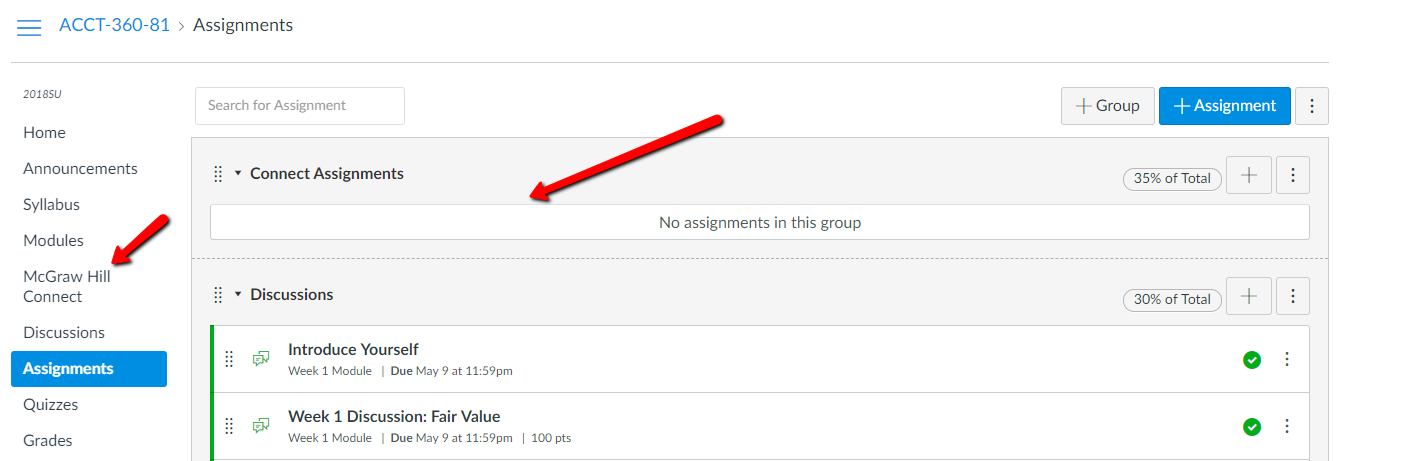
You may notice that some of your assignment categories are blank! Don’t panic! Your next step is to populate your Connect-related assignments through McGraw Hill Connect.
Steps:
- Create an account with McGraw Hill by contacting the CXG team at 800-331-5094. Always use your Champlain email address.
- Once your account is created, please contact your course producer who will copy the Connect course assignments with the correct dates and settings for your current term into your Connect account.
- Pair and Deploy your Canvas course with the Connect course that eLearning has placed in your new Connect account. Please note that elearning has already placed the McGraw-Hill tool in your course’s navigational bar so you can skip that section in the video. eLearning has also created and placed the Connect course with the correct term dates for your upcoming Canvas course in your Connect account.
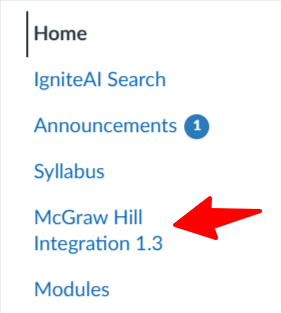
The image shows the McGraw Hill integration within the Canvas Dashboard menu.
Please note that once your Canvas course is paired with your Connect course and you have “deployed” your Connect assignments to Canvas, you will notice that the assignments are imported into the first assignment group in Canvas as seen in the video. If your Canvas course has multiple Connect related assignment group categories (for example Exams, Quizzes etc) in Canvas, you will need to separate the Connect assignments into their respective assignment group category. For example, the Quizzes and the Exams may need to be placed in their own assignment group category. Canvas will allow you to drag the quizzes and the exams to their respective assignment group category.
Example of a Connect assignment category in Canvas:
Please connect with your Course Producer once you have deployed your assignments so that the Producer can finish setting up your section.